




Stop Chasing Meeting Times with Scheduling Polls in Outlook | Intellect IT
Scheduling polls in outlook reduce email chains and calendar chasing. See how Microsoft 365 can help your team find meeting times faster.
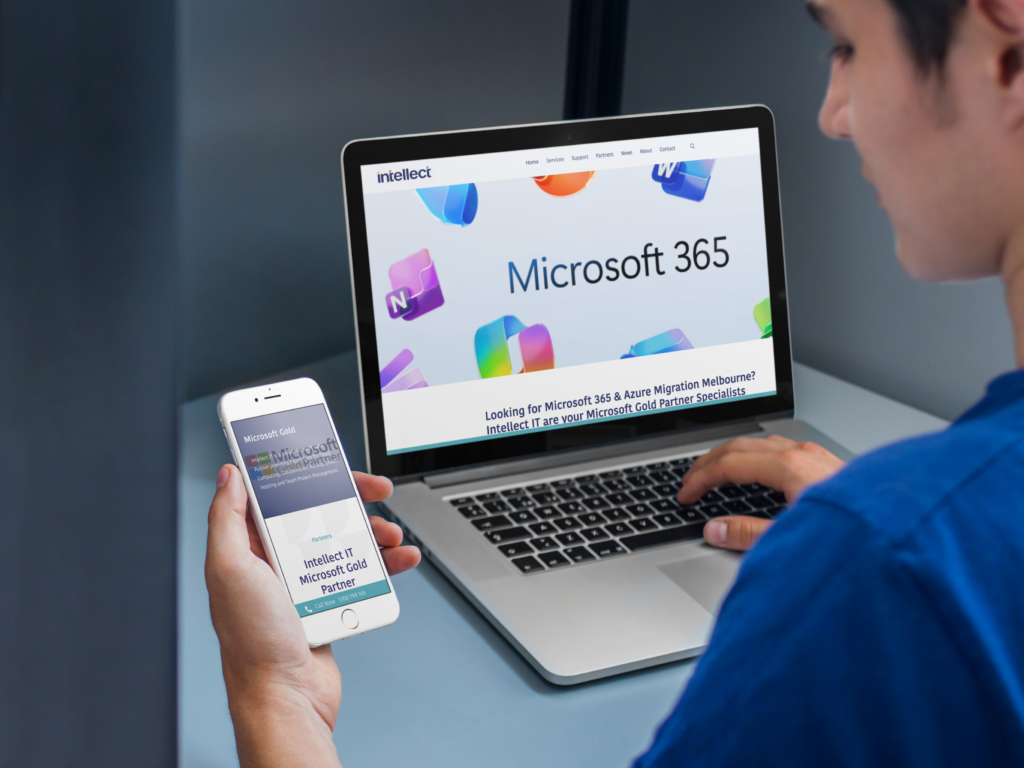
Many small businesses use Microsoft 365 every day but still feel unsure where files should live, what should be shared, and what creates risk. SharePoint vs OneDrive vs Teams - When Should Each Be Used for Your Business is the key question we help clients answer. In this guide, we explain the difference between OneDrive, SharePoint, and Teams, and show you exactly which tool to use for drafts, official records, and day‑to‑day collaboration.
The main difference between SharePoint, OneDrive, and Teams comes down to purpose: OneDrive is where individuals keep personal work and drafts, SharePoint is where the business keeps structured, shared documents, and Teams is the communication hub that ties it all together.
| Tool | Primary Purpose | Best For | Icon |
|---|---|---|---|
| OneDrive | Personal file storage and drafts | “My files” – working documents, notes | ☁️ |
| SharePoint | Structured document management | “Our files” – policies, client and project | 🏢 |
| Teams | Communication and active collaboration | Chat, meetings, live work on shared files | 💬 |
OneDrive - “My files” Use OneDrive for personal work: drafts, notes, and documents that aren’t ready for the rest of the business. If you leave, access to this content typically goes with your account, so it’s not the right place for information the organisation must retain.
SharePoint - “Our files” Use SharePoint for business-owned information that needs to outlive individual staff: policies, client records, project documentation, and anything that needs proper structure, permissions, and version history.
Microsoft Teams - Active work around shared files Use Teams for day‑to‑day collaboration: chat, meetings, and quick feedback on documents. Teams gives people a single place to work together, while the underlying files still live in SharePoint (for channels) or OneDrive (for private chats).
How they work together in practice: Draft the document in OneDrive, turn it into an official record in SharePoint, and use Teams to have the conversations and meetings around it. This way the business keeps control of the information, and staff still get a flexible way to work.
Use OneDrive — it's your personal workspace for drafts, notes, and files only you need right now.
Use SharePoint — centralised storage where your team can access and collaborate on shared files securely.
Use SharePoint — the official business system for policies, procedures, and records that the organisation owns.
Use Teams — your hub for communication, meetings, and real-time collaboration (it uses SharePoint behind the scenes).
Rule of Thumb: If it's just for you, use OneDrive. If the business needs it, use SharePoint. If you need to talk and work together, use Teams.
OneDrive supports individual productivity. Each user has a personal OneDrive tied to their account.
Appropriate use cases for OneDrive:
OneDrive follows the user; it is intentionally personal and flexible.
Avoid storing business procedures, policies, client documentation, or project records that the business needs long-term.
When OneDrive creates risk:
When a staff member leaves, their Microsoft 365 account (and OneDrive) is removed after a retention period. If critical data only exists in OneDrive, that information can be lost. From a continuity and risk perspective, OneDrive should never be the single source for important business files.
Think of OneDrive as your desk drawer - useful for daily work, but not for permanent company records that others need.
SharePoint is designed to hold shared, business-critical information. It is owned by the organisation, not individuals.
Appropriate use cases for SharePoint:
Think of SharePoint as your company's digital filing system. It is structured, permission-based, and outlives staff changes.
Always store final, approved versions of business documents in SharePoint. This ensures continuity even when staff change roles or leave.
Why SharePoint enhances business continuity:
At Intellect IT, once SharePoint is structured properly, file management becomes simpler, safer, and more transparent.
Teams is often mistaken for a storage platform. In reality, Teams is a collaboration layer that uses SharePoint to store files.
Appropriate use cases for Teams:
Every Team in Microsoft Teams has a SharePoint site behind it! When you upload files to Teams channels, they're automatically stored in SharePoint.
Every Team in Microsoft Teams includes a connected SharePoint site, so when files are added to a Teams channel, they are automatically stored in SharePoint.
Businesses often rely on Teams chat history for long-term information or decisions. Over time, this causes:
Using Teams chat as the permanent home for important decisions, approvals, or project information.
Better practice:
Personal workspace, flexible
Business record, permanent
Collaboration & feedback
Creating a new policy document
Managing client documentation
Project collaboration
This structure ensures that business data remains centralised, discoverable, and safe.
Where do most of your policies currently live?
In practice, many engagements start with a business that has documents scattered across personal OneDrive folders, email attachments, and ad‑hoc Teams chats. We typically begin by mapping what information truly belongs in a shared, business-owned space and what can stay as personal working content.
For example, HR teams often keep draft policies in OneDrive but need final, approved versions and historical copies in SharePoint for compliance reasons. Project teams may live in Teams channels during a busy delivery phase, but the long-term record of contracts, statements of work, and client deliverables still needs to sit in a well-structured SharePoint library.
By tackling these scenarios with clear rules, businesses not only reduce risk but also make onboarding and handover between staff much smoother. New team members can quickly locate key documents in SharePoint instead of digging through old threads or personal drives, which improves productivity from day one.
Using the wrong Microsoft 365 tool can lead to:
When a Microsoft 365 environment feels messy, it is often due to unclear guidelines around SharePoint, OneDrive, and Teams.
To keep your business environment clear and secure:
Use OneDrive for personal and draft work. Use SharePoint for long-term, official documents that belong to the business. Use Teams for day‑to‑day collaboration where communication and file sharing happen together.
These boundaries improve security, simplify training, and support long-term continuity.
"After Intellect IT restructured our SharePoint and Teams, our staff stopped asking 'Where do I save this?' every day."
— Intellect IT Client
Get a structured review of your Microsoft 365 environment.
Book a Microsoft 365 AssessmentMicrosoft 365 delivers the most value when structured and governed properly.
At Intellect IT, we help businesses:
Done well, Microsoft 365 becomes an enabler of productivity, not confusion. If your business needs support reviewing how you use Microsoft 365, our structured advisory approach can make a measurable difference.
SharePoint manages shared, business-wide documents; OneDrive stores personal work files; and Teams enables communication and collaboration using SharePoint to store files.
Use OneDrive for drafts or personal files not yet ready for team use. Use SharePoint for approved, shared, and business-critical documents.
No. Teams is a collaboration tool built on SharePoint, where all files uploaded in channels are saved automatically.
If an employee leaves, their OneDrive account is deleted after retention. Storing business-critical documents there risks permanent data loss.
Follow a clear rule set: OneDrive for personal files, SharePoint for shared business data, and Teams for collaboration.

Scheduling polls in outlook reduce email chains and calendar chasing. See how Microsoft 365 can help your team find meeting times faster.
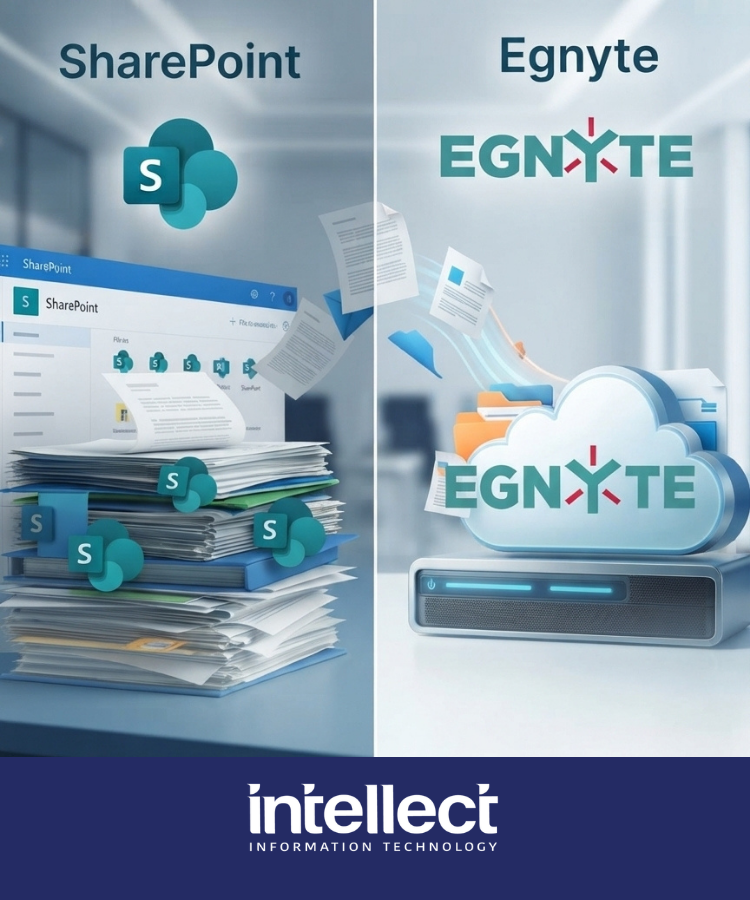
Comparing Egnyte vs SharePoint file management? See why Melbourne engineering and hybrid businesses choose Egnyte for file governance and hybrid access.

Elevate your enterprise infrastructure with an IT Best Practices Audit. Learn how Intellect IT measures IT maturity, improves security, and drives compliance.