
Secure Home Wi-Fi Network: A Practical Setup Guide
At a glance
QUICK ANSWER
The Practical Starting Point: What Is a Secure Home Wi-Fi Network?
A secure home Wi-Fi network is a home network designed to protect the router, trusted devices and personal information by using strong access controls and separating devices according to their level of trust.
The most common risks come from leaving default router settings in place, using weak or reused passwords, delaying firmware updates and connecting every device—including cameras, smart plugs, speakers and computers—to a single unrestricted Wi-Fi network.
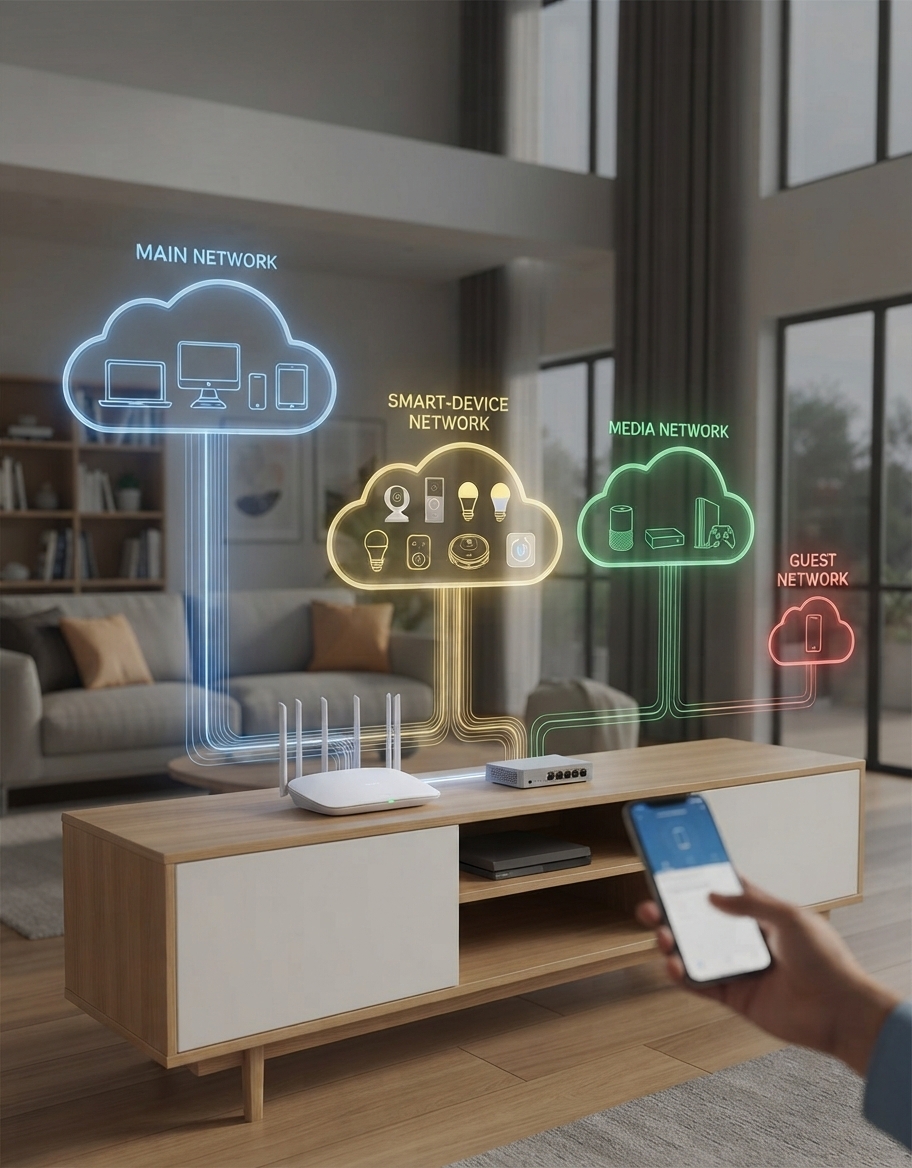
A practical setup starts with securing the router, then separating trusted personal and home-office devices from smart-home equipment and guest devices. This limits unnecessary access and reduces the impact if a less secure connected device is compromised. Guidance from the Australian Cyber Security Centre highlights that proper baseline configuration and device separation are vital for mitigating common household and remote-office cyber risks.
Key takeaways
Why a secure home Wi-Fi network matters
Home Wi-Fi becomes a security issue when a router, laptop, phone, smart camera and media device are all connected to the same unrestricted network. Everything may appear to work normally, the Wi-Fi signal may be strong and every device may be online.
But if a router still uses default settings, firmware is out of date or a less secure smart device is compromised, the questions become more urgent: what can that device reach? Can it access personal data or home-office systems? Can someone change the router settings?
Without a clear home network setup, households can rely on assumptions. Default administrator credentials remain in place, old routers stop receiving security updates, visitors join the same network as work devices and smart devices gain access they do not genuinely need.
That is not always a single technical failure. It is a repeated security exposure that can quietly put personal information, connected technology and professional home-office systems at risk.
A secure home Wi-Fi network provides a practical way to reduce that exposure. The objective is not to turn a home network into an enterprise environment. It is to secure the router, use strong credentials, keep devices up to date and separate trusted devices from smart-home equipment, guest devices and selected media systems where appropriate. For broader governance standards on network defense, you can review the ACSC Essential Eight framework principles adapted for small-scale environments.
Stephen’s perspective
“A strong Wi-Fi password is important, but it is only one part of the picture. The real protection comes from securing the router, keeping it updated and making sure every connected device has only the access it genuinely needs.”
Stephen Allan Intellect IT
For busy households, remote workers and small business owners, the goal is not to manage a complex collection of network settings. It is to protect personal information, maintain reliable connectivity and give important home-office devices sensible separation from lower-trust smart technology.
Four secure home Wi-Fi network decision areas
A practical review of a secure home Wi-Fi network should focus on four core decision areas:
- Router security: Confirm that the router administrator username and password are no longer set to factory defaults, the Wi-Fi password is strong and unique, firmware is current and remote management is disabled unless there is a specific, well-managed reason to use it.
- Device separation: Review whether trusted devices, smart-home equipment, visitor devices and media systems are separated appropriately. A smart camera, plug or appliance does not usually need the same access as a laptop, mobile phone or home-office computer.
- Access control: Check whether the Wi-Fi uses the strongest security mode supported by the router and devices, preferably WPA3 where available. Review whether client isolation, guest access and firewall rules limit unnecessary communication between devices.
- Ongoing maintenance: Confirm that the router and connected devices receive security updates, unused devices are removed and the household periodically reviews what is connected to the network and what level of access each device needs.
How to assess the right setup
The right home network setup starts with the level of protection and reliability your household needs, not simply whether every device can connect to the Wi-Fi.
-
Step 01Secure the Router and Wi-Fi Credentials
-
Step 02Identify Trusted, Smart and Guest Devices
-
Step 03Separate Devices by Access Needs
-
Step 04Configure Media and Home-Office Access
-
Step 05Review Updates and Connected Devices
- Secure the router and Wi-Fi credentials: Change the router’s factory administrator username and password, set a long and unique Wi-Fi passphrase, choose a Wi-Fi name that does not disclose personal information or router details, and use WPA3 where compatible devices support it.
- Identify trusted, smart and guest devices: List the devices connected to the network and group them by what they do. Trusted devices can include laptops, phones, tablets, printers and home-office equipment. Smart devices can include cameras, lights, appliances, plugs, doorbells and sensors. Visitors should use a dedicated guest network.
- Separate devices by access needs: Create a main network for trusted devices and a separate network for smart-home equipment where the router supports it. Enable client, device or AP isolation for smart devices that do not need to communicate with one another.
- Configure media and home-office access: Review whether Sonos speakers, streaming devices, smart TVs and similar equipment need limited access for app control and device discovery. Where networks are separated, configure only the required discovery and access rules rather than allowing unrestricted communication.
- Review updates and connected devices: Enable automatic router firmware updates where possible, replace unsupported equipment, remove unused devices and review the connected-device list regularly for anything unfamiliar or no longer needed.
What a secure home Wi-Fi network review should cover
A review of a secure home Wi-Fi network should focus on the practical settings and devices that determine whether the household can use connected technology safely and reliably:
- Router administrator security: Confirm that the router’s default administrator username and password have been changed and that management access is protected by a unique, long passphrase.
- Wi-Fi name and encryption: Review the network name, Wi-Fi password and wireless encryption settings. Use WPA3 where supported, or WPA2/WPA3 transition mode where older devices still require compatibility.
- Firmware and support status: Confirm the router receives security updates, automatic updates are enabled where available and equipment that has reached end of support is replaced.
- Remote access and unnecessary features: Review remote router management, Wi-Fi Protected Setup (WPS), and Universal Plug and Play (UPnP). Disable unnecessary features unless a specific device or service genuinely requires them.
- Trusted-device network: Identify the laptops, phones, tablets, home-office equipment, printers and storage devices that need access to personal information, business applications or sensitive accounts.
- Smart-device network: Identify cameras, doorbells, lights, plugs, appliances, thermostats, sensors, robot vacuums and other internet-of-things devices that may need internet access but do not need access to trusted devices.
- Guest Wi-Fi access: Confirm that visitors can use a separate guest network without being able to access personal devices, home-office systems or network storage.
- Media-device requirements: Review whether speakers, streaming devices, smart TVs and media receivers need local discovery or app control. If separate networks are used, document the limited access required for them to work reliably.
- Client isolation and firewall controls: Check whether the router supports client isolation, device isolation or firewall rules that prevent smart devices from reaching the main network or other devices unnecessarily.
- Connected-device visibility: Review the router’s connected-device list regularly, remove unused devices and investigate unfamiliar devices before they become a security or privacy concern.
A secure home Wi-Fi network is straightforward in principle. The value comes from applying these settings consistently to the router, the trusted devices that hold important information and the connected technology that may need more limited access.
Home and business impact: from exposure to control
The goal is not to make a home network difficult to use. It is to reduce avoidable risk while maintaining the reliable connectivity people need for personal use, media systems and professional work.
A well-managed secure home Wi-Fi network can deliver:
- Better protection for personal information: Laptops, phones, tablets, online accounts and cloud services are less exposed to insecure or poorly maintained smart-home devices.
- Safer professional home-office access: People working remotely can better protect business applications, customer information, cloud platforms and communication tools from unnecessary local network exposure.
- More control over smart devices: Cameras, lights, plugs, appliances and connected devices can access the internet without automatically receiving unrestricted access to more sensitive devices.
- Reliable guest access: Visitors can connect to the internet without being placed on the same network as personal devices, home-office equipment or storage systems.
- Improved network visibility: Regular device reviews make it easier to identify equipment that is no longer needed, has been forgotten or does not belong on the network.
- Less disruption from avoidable issues: A well-maintained router, sensible network separation and carefully configured media access can improve both security and day-to-day reliability.
Consider the alternative. A single unrestricted Wi-Fi network can mean that a visitor’s device, an outdated smart camera or a compromised appliance has the same local access as a laptop used for banking, work, email or customer information.
Addressing this risk does not require an overly complicated setup. It means making deliberate decisions about router security, device access and the networks that trusted, smart, guest and media devices should use.
Common secure home Wi-Fi network pitfalls
The most common mistake is assuming that a working Wi-Fi connection is automatically a secure one. It is not. A sensible home network approach needs to consider the router, passwords, firmware, device access, guest connectivity and the different requirements of smart and media devices.
- Leaving default router credentials in place: Factory usernames and passwords can make it easier for an unauthorised person to access router settings, change network rules or lock the household out of its own network.
- Using a weak or reused Wi-Fi password: A password used across several services or shared widely can expose the network unnecessarily. Use a long, unique passphrase for Wi-Fi and a separate one for router administration.
- Delaying firmware updates: Routers need security updates just like computers and phones. An unsupported router may no longer receive patches for known vulnerabilities and should be replaced.
- Connecting every device to one network: Placing trusted laptops, work devices, cameras, smart plugs, appliances and guest devices on the same unrestricted network creates unnecessary pathways between devices.
- Assuming 2.4 GHz is more secure: The 2.4 GHz band can be useful for smart devices because of its range and compatibility, but it is not a security control. Segmentation, strong authentication and access rules provide the protection.
- Using guest Wi-Fi without checking isolation: A guest network is only useful when it prevents guest devices from accessing the main network. Check the router settings rather than assuming this separation is enabled by default.
- Disabling UPnP without considering device needs: UPnP should be disabled when it is not required, but some gaming consoles, media devices and services may rely on it. Identify the specific requirement instead of enabling unrestricted access across the network.
- Separating Sonos or media devices without planning discovery: Speakers and media systems may rely on local discovery traffic. A separate media network can be effective, but it may need carefully configured multicast, mDNS or SSDP support to allow control apps to find the devices.
- Never checking connected devices: Unused phones, old tablets, previous tenants’ devices, forgotten smart equipment and unknown devices can remain connected longer than expected if the network is not reviewed regularly.
How Intellect IT helps secure home and business networks
Phase 1 – Understand your environment
- Identify connected devices: We review the devices that rely on your network, including computers, phones, tablets, printers, home-office equipment, smart cameras, doorbells, lights, speakers, streaming devices and network storage.
- Understand how you work: We consider how the network supports personal use, remote work, business applications, video meetings, cloud services, media systems and the devices that hold important information.
- Clarify access requirements: We identify which devices need trusted local access, which need internet access only and where guest, smart-device or media-device separation could improve security without affecting usability.
Phase 2 – Review security and device access
- Assess router security: We review router administration settings, Wi-Fi encryption, passwords, firmware status, remote access and other features that can affect the security of the network.
- Review network separation: We assess whether trusted devices, smart-home equipment, visitors and media systems are appropriately separated, and identify where unrestricted access creates unnecessary exposure.
- Check visibility and control: We help identify connected devices, unused equipment, outdated hardware and settings that may need attention as the household or business environment changes.
Phase 3 – Design the right network setup
- Set practical security priorities: We recommend an approach that matches the environment, whether it is a professional home office, a small business, a hybrid workplace or a more complex network with multiple users and connected devices.
- Build sensible network separation: We can design secure network arrangements for trusted devices, smart-home or IoT equipment, guest access and selected media systems, using appropriate Wi-Fi, firewall and access-control settings.
- Support reliable working access: We configure the network so home-office systems, cloud services, video meetings, printers, storage and business applications have the reliable and secure access they need.
Phase 4 – Implement, support and maintain
- Implement practical controls: Our Melbourne technical team can configure the agreed router, Wi-Fi, network-separation, access-control and security settings with a focus on maintaining reliable day-to-day connectivity.
- Support ongoing network health: We help maintain the wider technology environment through proactive support, device management, security updates, monitoring and advice as users, devices and working requirements change.
- Keep security proportionate: We focus on improvements that make a meaningful difference to security and reliability without creating a setup that is unnecessarily difficult for people to use and manage.
The goal is not simply to connect every device to Wi-Fi. It is to create a secure home Wi-Fi network that protects important devices, supports professional work and gives connected technology only the access it genuinely needs.
Interactive check
Secure Home Wi-Fi Network Check
Answer four quick questions to identify whether your home Wi-Fi has sensible security foundations or whether a few practical settings may need attention.
Have you changed your router’s default administrator username and password, as well as the default Wi-Fi network name and password?
Does your router use WPA3 security where supported, and does it receive current firmware or security updates?
Are smart-home devices, such as cameras, plugs, lights and appliances, separated from your trusted laptops, phones and home-office devices?
Do visitors use a separate guest network, and do you regularly review the devices connected to your Wi-Fi?
Your home Wi-Fi position
Answer all four questions to see your directional result.
This is a quick directional check, not a detailed home network or cyber security assessment.
Decision support
What does your current home Wi-Fi setup look like?
Select the description closest to your current position.
Fast answers
Common secure home Wi-Fi network questions
Tap a question for a short, practical answer.
Should smart-home devices use a separate Wi-Fi network?
Is 2.4 GHz more secure than 5 GHz or 6 GHz?
Should I disable WPS, UPnP and remote management?
Can Sonos speakers work on a separate network?
How Intellect IT can help
At Intellect IT, we help Melbourne businesses and professional home-office users create a secure home Wi-Fi network with stronger router security, sensible device separation and reliable access for the technology that matters.
Whether you need to protect a home office, separate smart devices or improve business connectivity, we can help you put the right network foundations in place.
QUESTIONS, ANSWERED
Frequently asked questions
FAQs cloud backup gaps
What is the easiest way to start building a secure home wi-fi network?
Do I need an enterprise-grade setup to maintain a secure home wi-fi network?
How do smart-home devices compromise a standard home wi-fi network?
Can Intellect IT help configure a secure home wi-fi network for remote workers and business owners?

Ready when you are
Ready to experience
IT that just works?
Talk to an IntellectIT specialist. No obligation, no sales pitch, just honest advice for your business.