




How to Protect Client Data. What Would a Criminal Pay for Your Client List?
Protect client data with three basics: passphrases, a password manager and MFA. Take our 6-question security self-check and see where your business stands.
With Windows 11 now the standard for business endpoints, security has taken a significant step forward. One of the key protections built into Windows 11 is BitLocker, Microsoft's full disk encryption technology. BitLocker is an important control for protecting data on laptops and desktops, particularly when devices are lost or stolen, but it must be paired with a robust BitLocker Windows 11 backup strategy to be truly effective.
BitLocker encrypts the entire system drive of a Windows device so that, if a laptop is lost, stolen, or the hard drive is removed, the data cannot be accessed without the correct authentication or BitLocker recovery key.
Modern Windows 11 deployments typically enforce BitLocker automatically through Microsoft Intune or Entra ID, with recovery keys securely stored and managed centrally. In Intellect IT's Standard Operating Environment (SOE), BitLocker is enforced by default as part of endpoint protection and Essential Eight alignment, ensuring data at rest is protected across all supported devices.
This is good security practice and a requirement for many cyber insurance and compliance frameworks. However, encryption alone does not equal data protection, and without a deliberate BitLocker Windows 11 backup strategy, organisations can still face unrecoverable data loss.
A common misconception is that BitLocker somehow protects data from all failures. In reality, BitLocker only protects against unauthorised access, not data loss.
When BitLocker is enabled:
This makes backups non‑negotiable. Without backups, encryption increases the risk of permanent data loss during incidents or device failures. A BitLocker Windows 11 backup strategy must therefore focus on both data and key recovery, not just enabling encryption on endpoints.
Modern laptops are no longer fixed office assets. They are mobile, regularly moved between locations, connected to unknown networks, and exposed to higher physical risk.
Storing critical work data in local folders such as Desktop or Documents introduces several problems:
From a business continuity perspective, local‑only data is a risk that is no longer necessary. When BitLocker is added to this picture without a supporting backup approach, the chance of losing access to locally stored data increases further.
Prefer a printable version? Download the ungated PDF guide for a concise, business-focused summary of BitLocker risks, recovery key management, OneDrive redirection, and the backup controls Windows 11 environments need.
A robust BitLocker Windows 11 backup strategy requires protecting both business data and BitLocker recovery keys. Because Windows 11 heavily relies on automatic device encryption, a hardware malfunction, motherboard replacement, TPM issue, or even a significant Windows update can lock you out of your data permanently if you do not have a dedicated backup workflow.
To reduce this risk, organisations should implement a structured, multi-layered approach that treats both data and keys as critical assets.
The BitLocker recovery key is the only way to regain access to encrypted data if the Trusted Platform Module (TPM) fails or a hardware configuration change is detected.
In a business environment, best practice includes:
For unmanaged or edge cases, additional redundancy may include:
A BitLocker Windows 11 backup strategy should align with the well‑known 3‑2‑1 backup principle:
The live working copy plus at least two separate backups.
For example, cloud storage and an external or secondary storage platform.
Typically cloud-based, to protect against physical incidents at a single site.
For most modern organisations on Microsoft 365, this is effectively achieved by:
You can use a simple decision structure like this to guide where different types of data should live across your computing infrastructure.
| Data Type | Local Device Only | OneDrive | SharePoint / File Server |
|---|---|---|---|
| User documents (everyday work) | ❌ Not recommended | ✅ Recommended | Optional (team content) |
| Team / project documents | ❌ Not recommended | Possible | ✅ Recommended |
| System images / OS builds | ❌ Not recommended | ❌ Not recommended | ✅ Recommended (IT storage) |
| Compliance / long-term records | ❌ Not recommended | ❌ Not recommended | ✅ Recommended (governed) |
This reinforces that local‑only storage should be avoided for most business data.
Backing up data to the same physical device — even to another internal partition — creates a critical, single point of failure. If a Windows 11 device with BitLocker enabled experiences drive failure, motherboard failure, or severe file system corruption, then both the primary data and any on‑box backup may be rendered unreadable. BitLocker will not help in that scenario and may actually prevent direct low‑level access to the data.
A sound BitLocker Windows 11 backup strategy therefore avoids designs where backups depend on the health of the same hardware that hosts the production system.
Not all backup methods interact safely or predictably with BitLocker.
For most business environments, file‑level backup via Microsoft 365, combined with modern endpoint management and cloud backup solutions, provides the most reliable and scalable approach.
Microsoft OneDrive provides a practical and effective way to remove the risks of local‑only data. By redirecting known user folders such as Desktop, Documents, and Pictures into OneDrive, work data is automatically synchronised to Microsoft 365 and becomes part of your broader backup and governance framework.
Benefits of OneDrive folder redirection include:
Intellect IT's SOE enforces OneDrive folder redirection by default, ensuring user data is not reliant on the local device and aligning with modern security and resilience practices.
The Australian Cyber Security Centre's Essential Eight focuses heavily on reducing the impact of compromise and improving recovery capability. BitLocker supports encryption at rest, while OneDrive redirection and cloud‑based data storage directly support:
While BitLocker protects the device, OneDrive and a solid backup framework protect the business. Used together within a managed SOE, they significantly reduce risk to end‑user computing environments. Intellect IT's SOE is designed to meet most endpoint‑related Essential Eight requirements as part of a cohesive, managed security model.
Click each item to mark it complete — track your organisation's readiness below.
0 of 7 complete
Intellect IT's managed SOE for Windows 11 is designed to address these challenges by default. Our standard build enforces BitLocker across supported endpoints, redirects user data into OneDrive to avoid local‑only storage, aligns endpoint security and backup practices with Essential Eight guidance, and ensures BitLocker recovery keys are centrally managed and retrievable.
This allows organisations to benefit from strong encryption without increasing the risk of data loss or operational disruption. If you are unsure whether your devices are configured this way, or if staff are still storing critical data locally, now is the time to review your setup and put a BitLocker Windows 11 backup strategy in place.
BitLocker is Microsoft's full disk encryption feature that protects data at rest by preventing unauthorised access if a Windows 11 device is lost, stolen, or tampered with.
No. BitLocker prevents unauthorised access but does not stop data loss from hardware failure, accidental deletion, ransomware, or urgent rebuilds. Without a BitLocker Windows 11 backup strategy, encryption can make incidents harder to recover from.
Because Windows 11 relies heavily on automatic device encryption, events such as motherboard replacement, TPM failures, or major updates can trigger recovery requirements. If recovery keys are missing and data is only stored locally, businesses risk permanent data loss.
In managed environments, BitLocker recovery keys should be escrowed centrally in Microsoft Entra ID or Intune so IT can retrieve them when needed, with optional secure offline copies for additional resilience.
The most effective approach combines BitLocker encryption with a 3‑2‑1 backup model, cloud‑first storage such as OneDrive and SharePoint, and tested recovery processes that assume devices can and will fail.
Intellect IT helps organisations design and manage secure Windows 11 environments that combine BitLocker, OneDrive, and robust backup strategies to reduce risk and support Essential Eight alignment.
Contact Our Team
Protect client data with three basics: passphrases, a password manager and MFA. Take our 6-question security self-check and see where your business stands.

Deepfake scams use AI voice cloning to impersonate bosses and suppliers. Learn why spotting glitches fails and the 3-step process that protects your business.
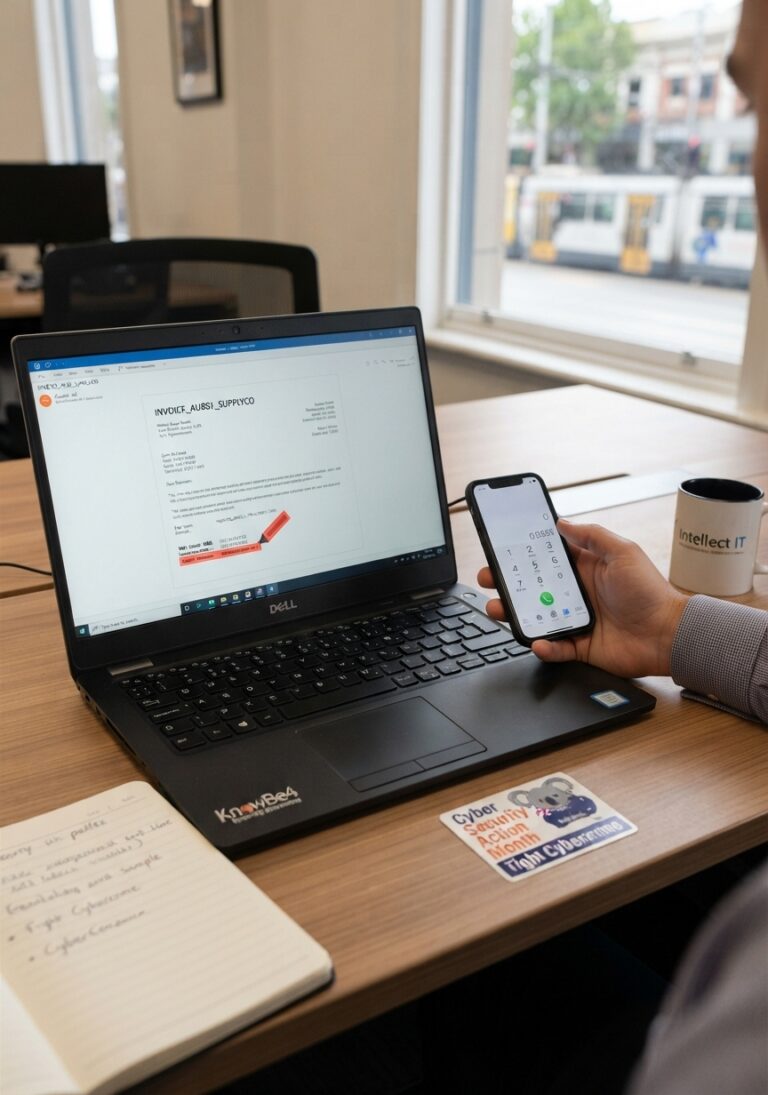
Phishing scams and fake invoices hit Australian businesses hard. Learn 5 red flags, test yourself on a real-looking invoice and the one habit that stops them.